Understanding Agent Selection Modes in Contact Point

Introduction

Selecting the right distribution method for incoming calls is a fundamental step in optimising your contact centre’s efficiency and customer experience. The Contact Point platform offers five distinct selection modes, each designed to balance agent workload and ensure callers are connected to the most appropriate representative.

Longest Idle

The Fair Workhorse
This is the most common distribution method. The system identifies which agent has been in the “Available” state for the longest period without receiving a call and delivers the next caller to them.

  • Best for: General customer service queues where all agents have similar training.
  • Why use it: It ensures a fair distribution of work across the team and prevents any single agent from being overwhelmed while others sit idle.

Skills Based Routing

The Specialist Approach
Skills-based routing prioritises expertise. Agents are assigned proficiency levels for specific tasks (e.g., Technical Support, Billing, or Specific Language). The system looks for the agent with the highest skill tier who is currently available; if multiple agents share that tier, it defaults to the “Longest Idle” agent within that group.

  • Best for: Complex environments requiring specialised knowledge or language support.
  • Why use it: It ensures the customer is connected to the person best equipped to solve their problem on the first attempt.

Circular (Round Robin)

The Consistent Sequence
Circular routing follows a fixed list of agents. When a call arrives, the system starts at the top of the list and works its way down to find the first available agent. Crucially, if an agent was busy but becomes available during the selection process, the system “remembers” their place in the list and will offer them the call if it is their turn.

  • Best for: Sales teams or groups where a strict, sequential order of opportunity is required.
  • Why use it: It provides a predictable pattern of call delivery that honours the agent’s fixed position in the hierarchy.

Terminal

The Forward-Only Sequence
Terminal routing is similar to Circular but with one key difference: it does not backtrack. If a call is being offered and an agent who was previously “Busy” becomes “Available,” the system will not return to their position in the list for the current call. That agent must wait until the cycle completes and starts again from the top of the list.

  • Best for: Specific administrative workflows where skipping agents who aren’t ready at the exact start of the search is preferred.
  • Why use it: It speeds up the selection process by moving in one direction only, reducing the “hunting” time for a single call.

Manual

The “Cherry-Pick” Method
In Manual mode, calls are not automatically “pushed” to agents. Instead, callers wait in a visible queue. Agents can see the list of waiting calls and must manually “pull” or select the specific call they wish to answer.

  • Best for: Highly specialised desk-side support or environments where agents need to see caller data or “Case Type” before committing to the interaction.
  • Why use it: It gives agents autonomy to prioritise specific high-value or urgent tasks based on the information displayed in the queue.

How to create a new dashboard

Introduction

This article describes the processes for creating a new dashboard and assigning your first tile in the Dashboard section of the Premier Contact Point administration module.

Background

Dashboards allow user and queue activity to be monitored in real time. The dashboard editor is used to configure what information is visible on the dashboard and the way the dashboard will display the information.


How to create a new dashboard

  1. Select Dashboard from the Administration menu panel then click on the Add button.
  2. Enter a unique name for the dashboard and then select the Canvas type, followed by SAVE. (see below for more information on Canvas types)

  3. Click the Edit Canvas button on the Production Copy line. This will open the dashboard canvas into a new tab within the browser.
    wHQ724lQlqJ7wAAAABJRU5ErkJggg==
  4. As this is a brand new canvas, a default size of W 1920 x H 1080 will be created. Use the Canvas size selector in the Presentation Parameters to select a different preset size or custom width and height.
    ySvNebAAAAABJRU5ErkJggg==
    Now that the canvas has been created, it’s time to start adding tiles.

When creating a new canvas, the Canvas type must be specified. The types are

  • Supervisor – this canvas type is used to display information to Administrator and Supervisor users.
  • Agent – this canvas type is used to display information to Agent users.
  • Wallboard – this canvas type is used to display information via wallboard accounts


How to add your first tile

  1. Using the left mouse button, click and drag the preferred tile type from the tile list onto the canvas. Each tile type contains an image to show the type of display it will generate.
    D39v0wHQLjioAAAAAElFTkSuQmCCPasted 7

This will add a blank tile to the canvas, the tile can be moved around the canvas using your mouse to click and drag to the preferred location. A selected tile will have a faint glow around it to indicate it is selected.

Each tile has four control items

  • Gear (top left) – This is used to edit the tile configuration.
  • Duplicate (top right) – This is used to duplicate the tile configuration to a new tile.
  • Resize (bottom right) – This is used to resize the tile.
  • Delete (bottom left) – This is used to delete the tile.

How to edit your first tile

  1. Click the tile that was dropped onto the canvas. The Tile settings panel will automatically jump to selected tiles configuration.
    wOvtSrumAD2ZgAAAABJRU5ErkJggg==

Depending on the tile type, up to five configuration sections are available. Each section can be expanded or collapsed using the arrows on the right hand side of the section. If a section is not collapsed it will remain open while other sections of the tile are worked on.

Dataset & Display Type

The Dataset and Display Type section is used to configure the data set type. For example on a Hero tile, Data sets of Queue, Agent and Contact Flow information can be selected.

Define Contents

The Define Contents section is used to define which data metric/s will be displayed and tile labels. For example Contact data to display the number of contacts currently in the queue.

sAAAAASUVORK5CYII=

Filter Settings

The Filter Settings section is used to apply filters to the data metrics. For example selecting which queues to sum multiple entities are being used to define contacts in queue.

ABWl52UAAAAASUVORK5CYII=

Layout & Styling

This Layout & Styling section is used to configure the layout of the tile allowing users to configure their preferred fonts, font sizes, colours and backgrounds.

9pWy6X81MpabtLtiZtd8nWpAUAhm+TmIFraS4yOQAAAABJRU5ErkJggg==

Alert Settings

The Alert Settings section is used to define alerts on the data metrics, for example changing the colour of the text when calls in queue exceeds a set threshold or applying an audio alert.

wd3yRq2ZOHF6wAAAABJRU5ErkJggg==

Slide in settings

The Slide in settings toggle can be used to hide the Dashboard tile toolbox and Canvas settings.

When enabled, the Dashboard tiles and Canvas settings will be minimised to a thin ribbon on each side of the screen. Moving the mouse over the ribbon will slide out the settings.

Why do I see The federated user is not configured to access the platform message when trying to login

Why do I see the federated user is not configured to access the platform message when trying to login

Users may report that when attempting to login using the ‘Login To O365′ option a message saying “The federated user is not configured to access the platform. Please contact your Administrator for assistance.’

PgLIgB7mNCpCPEAAAAASUVORK5CYII=

Why does the user see this message?

When a Login to O365 attempt is made, Microsoft return the Federated user name to the application. The application then looks up the user records and match the account.

The user will see this message as their account in the Users and Teams section either does not have an entry in the Federated User name field or the entry within the Federated User name field is incorrect and does not match with what was returned by Microsoft.

How to resolve this message

Edit the users record in the Users and Teams section of the Administration tool, navigate to the General tab in the User profile section.

If the Federated User name field is not completed for the user, add it.

If the Federated User name field is completed, check the entry and correct any mistakes.

Once this is complete, ask the user to try logging in again.

How to set call recording settings

Introduction

This article describes the options for call recording settings via the Queues section of the Premier Contact Point Administration module.

Background

Inbound and outbound calls in Premier Contact Point can be recorded. The configuration of call recording is set a queue based level and there are various options available for how calls can  be recorded providing flexibility amongst different queues.

How to access the call recording settings

  1. Select Queues from the Administration menu panel, then click on a queue to edit it.
    ALZO8z2oeZiCAAAAAElFTkSuQmCC
  2. Navigate to the Recording section from the blue menu panel to access the recording settings for the queue.

This will display the queue recording settings, each setting is described in more detail below.


GENERAL RECORDING SETTINGS

Setting Description
Automatically record all contacts With this option enabled, calls will automatically start recording when connected to an agent.


VOICE RECORDING SETTINGS

Setting Description
Allow agents to start / stop voice recording Three options are available (only one can be set)

  • Never = Agents will not be able to start / stop a call recording at any point during a call.
  • Anytime = Agents will be able to start / stop a call recording at any point during call.
  • Within = Agents will be able to stop / start a call recording with the duration specified, once the timer has expired agents will no longer be able to stop / start a call recording.
Disable recording while in IVR With this option enabled, the call recording will not record the caller during an IVR / Contact Flow before being connected with an agent.
Disable recording while in queue With this option enabled, the call recording will not record the caller during a queue messaging loop before being connected with an agent.
Disable recording while on hold With this option enabled, the call recording will not record when a caller is placed on hold.
Record through consultation With this option enabled, the call recording will record the consultation section of a call with another agent, queue or external third party.
Record through transfers With this option enable, the call recording will continue to the record the caller and external third party once the agent has released from the contact.


Changing recording settings will apply immediately to the queue. Before changing a recording setting please ensure you know what the change will do.

If you are unsure, please contact the Service Desk for further advice.


How to disable the Aux state profile

Introduction

This article describes the processes for disabling the Aux state profile in the Users and Teams section of the Premier Contact Point administration module.

Background

While logged into agent desktop agents use status reasons to control their availability. When a user changes status, the various status reasons are captured along with their duration. Changes of status are reflected on real time dashboards and captured for historical reporting purposes. In some cases, customers may want to disable the Aux state profile, making it unavailable for use.

How to disable the Aux state profile

  1. Select Users and Teams from the Administration menu panel.
  2. Navigate to the Groups tab, click on Default from the list and then click edit.
    u21CC8tnR3kAAAAASUVORK5CYII=
  3. Select Agent Parameters from the menu panel, then untick the ‘Aux state profile’ option. Then click Save.

This will remove the Aux state profile option from all users within the default Group.

Why can’t I see the the preferred microphone when connecting with Direct Audio

Why can’t I see the the preferred microphone when connecting with Direct Audio

Users may report that when attempting to connect using Direct Audio that they can’t see their preferred microphone and the connect audio pop-up asks them to select another option.

0X5G22J9cgAAAABJRU5ErkJggg==

When opening the available drop-down for speaker a message indicates ‘You must allow access to your microphone’

j+e7AktYivdtQAAAABJRU5ErkJggg==

Why does the user see this message?

The user is seeing this message as they have not allowed the Premier Contact Point website to access the microphone. When the user makes their first connection with the Contact Manager module, the web browser will ask the user to allow access.

Google Chrome and Microsoft Edge do this slightly differently (see screenshots below), the user when presented with this screen must allow the site to use the microphone.


Google Chrome

A4BzownZ8N8WAAAAAElFTkSuQmCC


Microsoft Edge

P8pN9Mwqpks2AAAAAElFTkSuQmCC


How to allow microphone access if its been blocked

If a user has blocked their microphone, access can usually be granted via the by selecting the notification that appears in the address bar or via the browser Site Settings.


Google Chrome

In Google Chrome the address will contain the Site Settings options. By clicking the Site Settings, the agent can use the slider to enable the microphone.
The Site Settings option is dynamic and the agent may briefly see messages indicating microphone access is not allowed and a similar icon to Microsoft Edge with a microphone with a line through it.


Microsoft Edge

In Microsoft Edge the address bar will contain a microphone image with a line through it. By clicking the icon, the agent can use the options to allow microphone access and then click Done.

A+W+KEtUhrQzAAAAAElFTkSuQmCC


How to remove a block using site settings

In some cases the user may need to access the browser settings to remove the existing block.

If this is required, it’s best to search for ‘microphone’ and then follow the prompts to access the site settings.

The following images are from Google Chrome, if you are using Microsoft Edge, the process is very similar.


Once Site settings have been accessed, the user can select Microphone.


Sites blocked from accessing the microphone will be listed and the rubbish tin can be used to remove the entry.


How to configure Okta authentication for single sign on

Introduction

This article assists with the configuration of an Okta integration app for the purpose of single sign on with Contact Point.

Background

Users logging into Contact Point have various options, including:

  • Basic authentication
  • Single sign on using Office 365, Google or Okta

Configuring Okta

To configure the Okta integration app you’ll need to have administrator access to the Okta admin portal.

  1. In the Okta admin web portal, navigate to Applications and select Create App Integration.
  2. Select the following value for the Sign-in method: OIDC – OpenID Connect.
  3. Select the following value for the Application type: Web Application.
    Okta create app type
  4. Click Next.
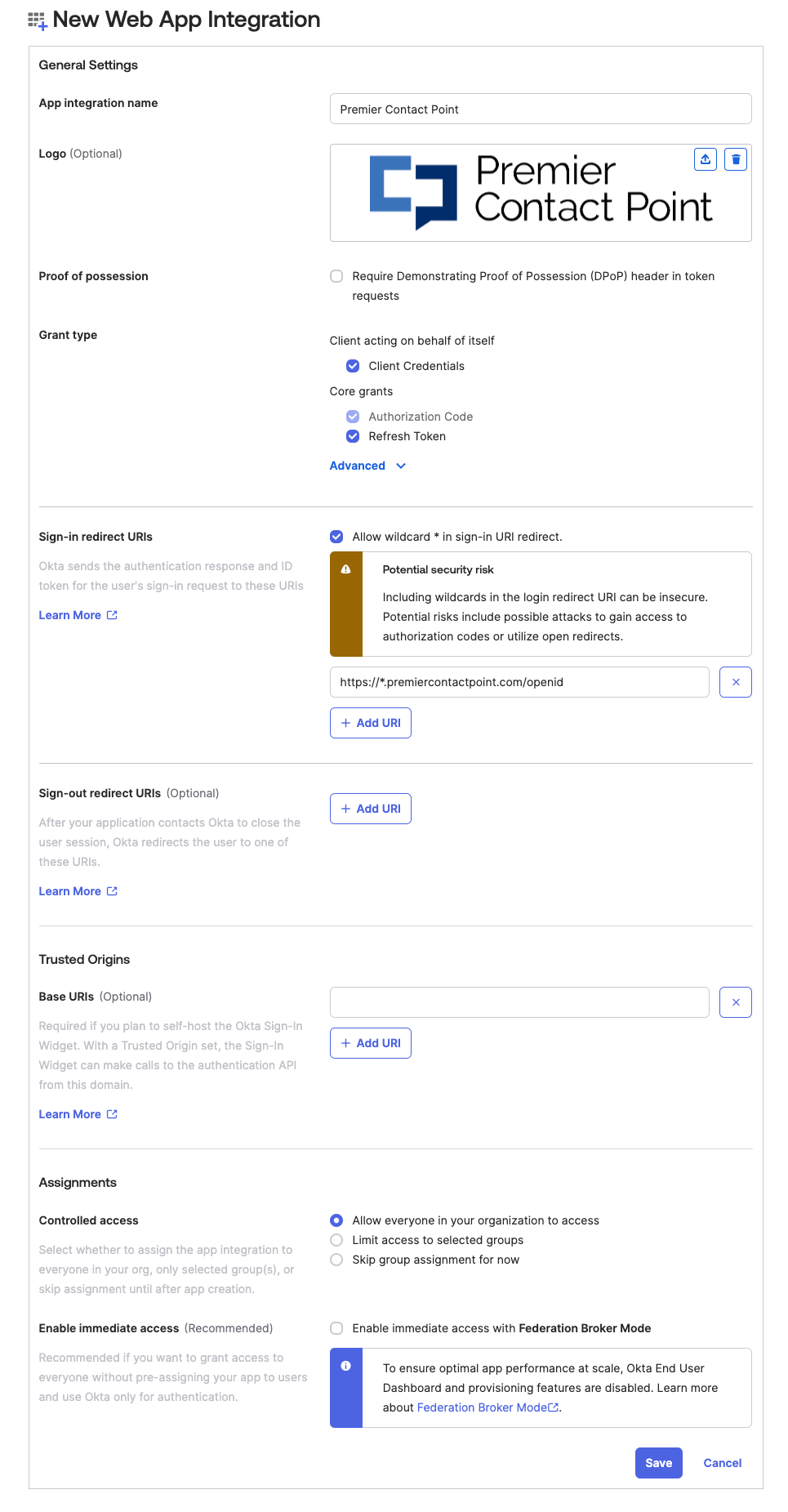
  5. Enter the value Premier Contact Point in the App integration name field.
  6. If you’d like to add the Premier Contact Point logo just ask us for the latest logo image.
  7. In the Grant type section, select the value Client Credentials and Refresh Token.
  8. In the Sign-in redirect URIs section, select Allow wildcard * in sign-in URI redirect, remove the localhost example URI by clicking the x next to the URI entry.
  9. Click the button + Add URI and enter this value, https://*.premiercontactpoint.com/openid
  10.  In the Sign-out redirect URIs section, remove the localhost example URI by clicking the x next to the URI entry. No URI will be populated here.
  11. In the Assignments section, select the controlled access option that best suits your needs.
  12. Click Save.

An example of the configuration page is below:

Okta create app config

Configuring Contact Point

Information we need from you

You’ll need to provide us with the client id and client secret for the Okta integration app you just configured.

These can be found by navigating in the Okta admin web portal to Applications and then by clicking on the Premier Contact Point application name, copy the Client ID and send it to servicedesk@premiercontactpoint.com.au, we’ll also need the Client secret but be sure to treat this like a password and send it to us via a secure/alternative method.

Client credentials such as a client id and client secret should be treated like any other username and password, ensure communicating these separately and where possible through separate methods.

User configuration

To configure Contact Point you’ll need administrator access.

  1. Navigate to the Administration tool.
  2. Using the left hand menu, select Users and Teams.
  3. Edit the first user that will login with Okta either by double clicking their name or selecting the checkbox to the left of their name and clicking the edit button.
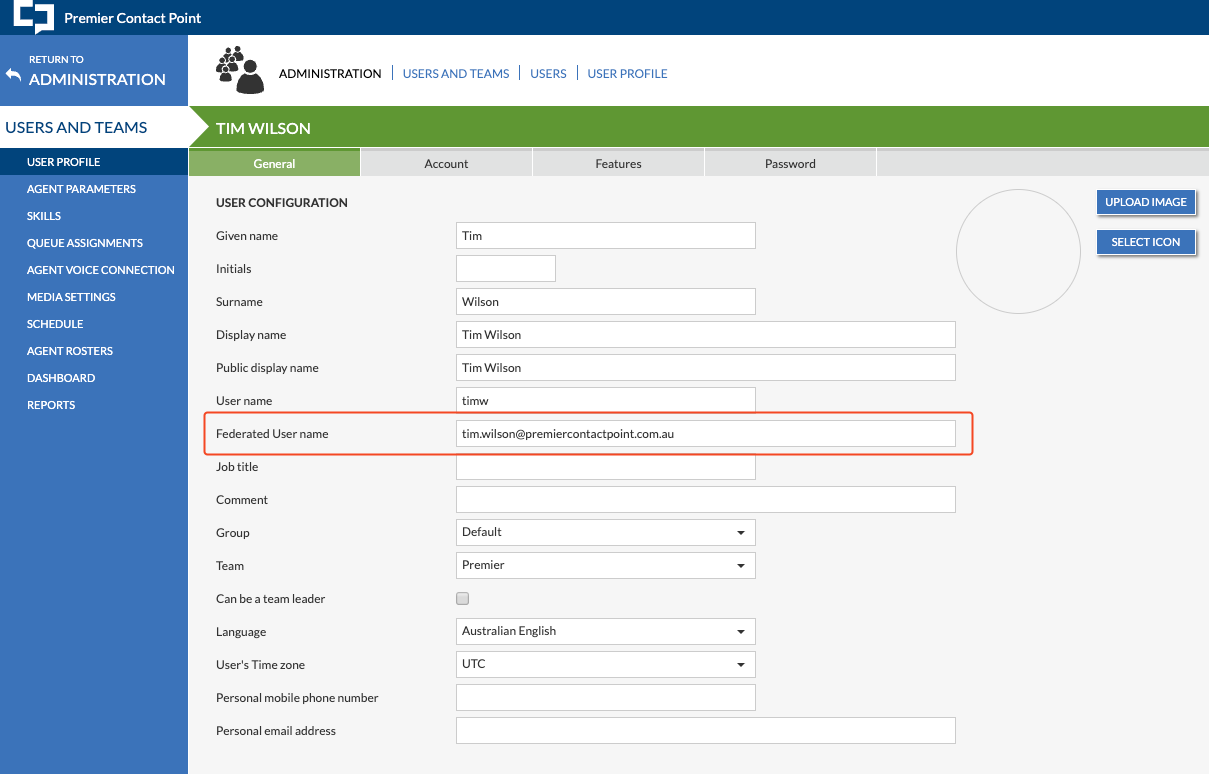
  4. For each user you’ll need to add their Okta email address into the Federated User name field.
    pcp user config
  5. Repeat for all users.

All done! We’ll confirm back to you when your client id and secret has been allowed on our end and once done you’ll be able to sign in via Okta.

How to set a secondary sound notification for incoming contacts

Introduction

This article demonstrates the how to setup a secondary sound notification for incoming voice contacts in the Contact Manager module of the Premier Contact Point platform.

Background

Users have configurable access to the Contact Manager module. This module is used to handle voice, email, webchat, SMS and instant message interactions.

The Contact Manager module is accessible via the Premier Contact Point home screen to authorised users.

When using a Accept / Requeue configuration, agents may want to configure a secondary sound notification to alert them when they are being offered a contact.

image 1

How to set a secondary sound notification for incoming voice contacts

Profile Menu

The Profile Menu is used to customise your user experience along with displaying other useful information to assist your session. By clicking on your Display Name, the profile menu will be displayed.

  1. Click on the Settings option found in your profile menu.
    w+eieeoIWNJTwAAAABJRU5ErkJggg==
  2. Navigate to the Sounds tab.
  3. To use a secondary sound notification the voice notification must first be enabled. Tick the ‘Enable‘ option for Voice, the use the drop-down menu to select the preferred Sound Notification and the drop-down menu to set the preferred number of repeats.
    D2EqffByWQMjAAAAAElFTkSuQmCC
  4. Use the drop-down menus for the Primary and Secondary notification audio to set the preferred devices, then click Save.
    P1HtAqUTidjzAAAAAElFTkSuQmCC
Where accounts are configured for other media types, additional sound notifications can be configured to alert incoming contacts.