Introduction
This article describes the processes for creating new external directory collection in the Global Settings section of the Premier Contact Point administration module.
Background
Users logged into agent desktop have access to the internal and external phone directory collections using the Outbound and Conference functions. The internal and external directory collections contain lists of commonly used numbers, allowing agents to quickly initiate outbound, consult and conference calls much quicker than manually entering a number.
Direction collections can be one of two types
- External – these collections will appear on the Externals tab of the Outbound / Conference function
- Internal – these collections will appear on the Internals tab of the Outbound / Conference function
In addition to a given name and surname, directory collections can be configured to display up to an additional six pieces of information about the contact.
Each queue on the system can be assigned one internal and one external Directory Collection.
How to create a new external directory collection
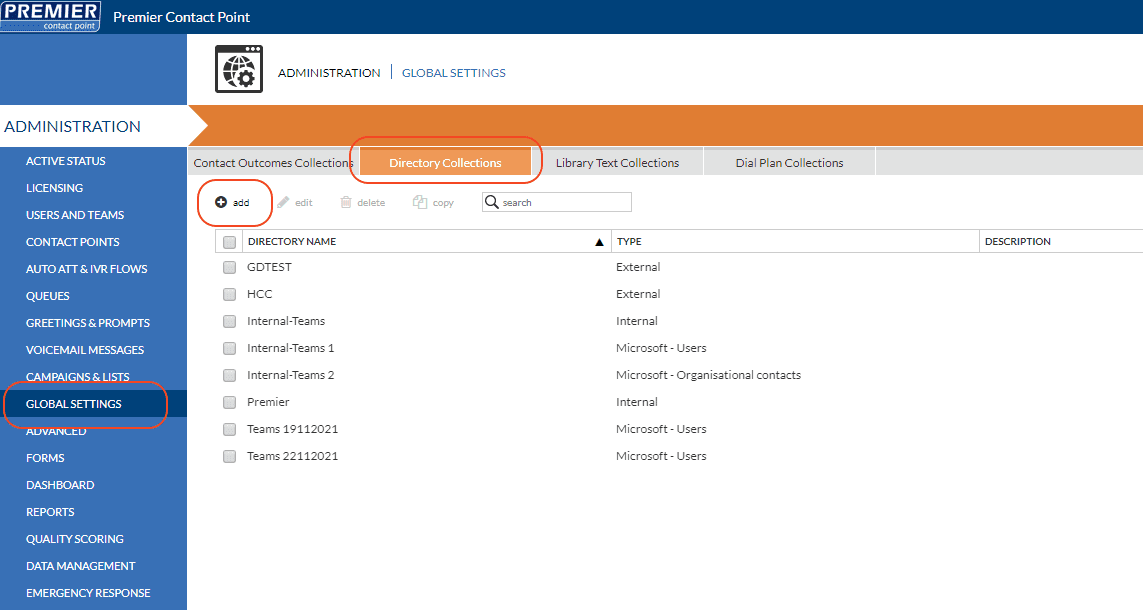
- Select Global Settings from the Administration menu panel.
- Navigate to the Directory Collections tab, then click add.
- Enter a Directory collection name and Description (optional).
- Select External from the drop-down Directory type.

- Click Save
Now that you have created your first directory collection, it is time to configure the directory labels.
Directory labels allow you to include up to six custom pieces of information about the contact.
Directory Labels can be configured using four different field types
- Phone Number – This will allow a landline phone number to be entered
- Mobile Number – This will allow a mobile phone number to be entered
- Email Address – This will allow an email address to be entered
- Info – This will allow a free form data entry, e.g. Company Name, Role
Any fields configured as the ‘Info’ type can also be used to apply optional sorting to the directory collection when viewed in the agent desktop.
Creating Custom Directory Labels
- Select Global Settings from the Administration menu panel.
- Navigate to the Directory Collections tab, select the directory name you have just created, then click edit.
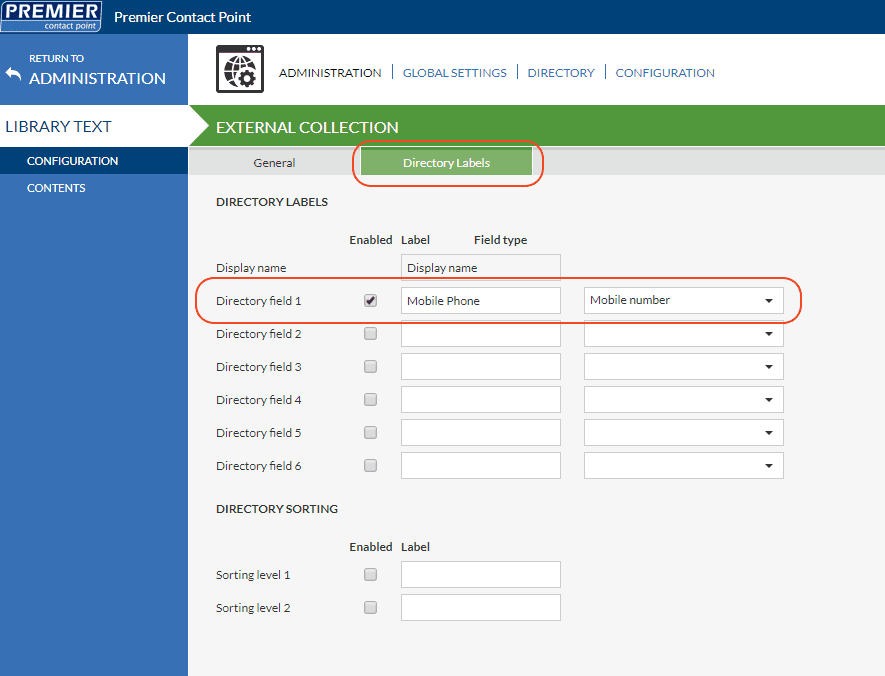
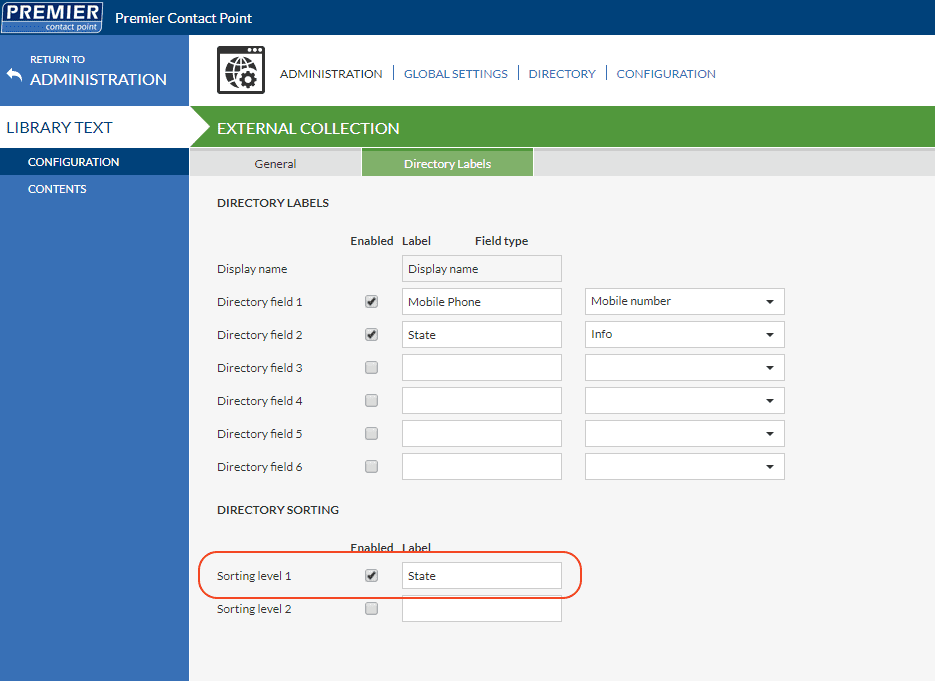
- Navigate to the Directory Labels tab.
- Click the tick-box for Directory field 1.
- In the Label field enter ‘Mobile Phone’.
- From the drop-down Field type, select Mobile Number.
- Apply any additional required directory labels by repeating Step 4 to Step 7.
- Click Save.
If sorting is required, click the tick-box next to Sorting level 1 and then from the drop-down Label menu, select one of the Info type fields configured in the Directory Labels section.
Now that Directory Labels have been created you can now start to add entries to the Directory Collection.
Adding entries to the Directory Collection
- Select Global Settings from the Administration menu panel.
- Navigate to the Directory Collections tab, select the Directory Name you have just created, then click edit.
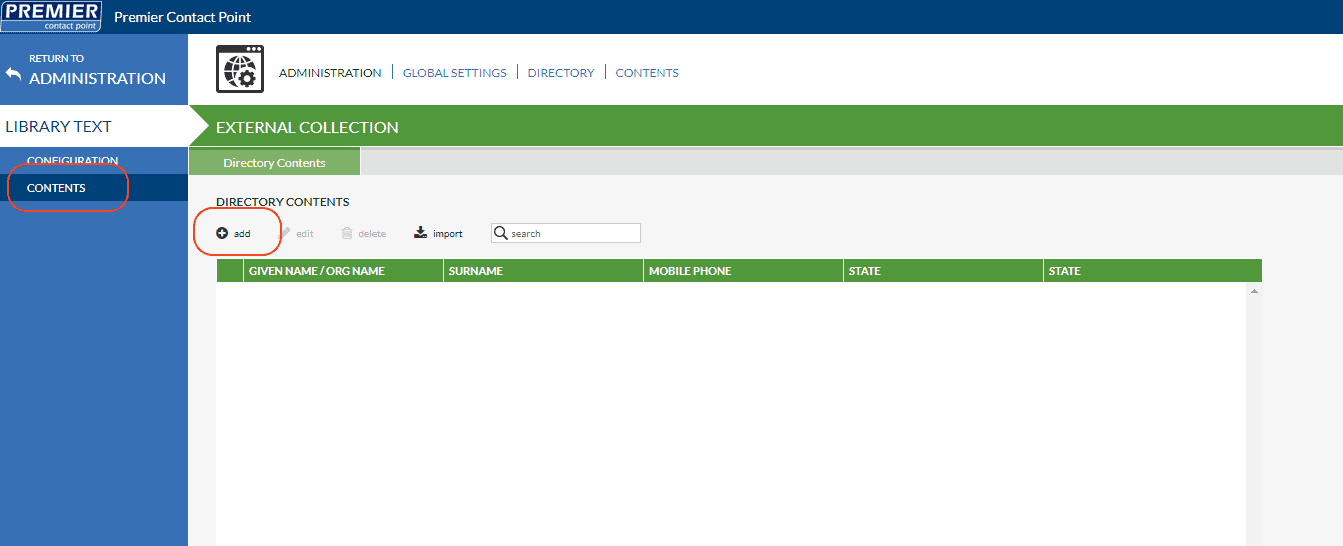
- Select Contents from the Global Settings menu panel, then click add.
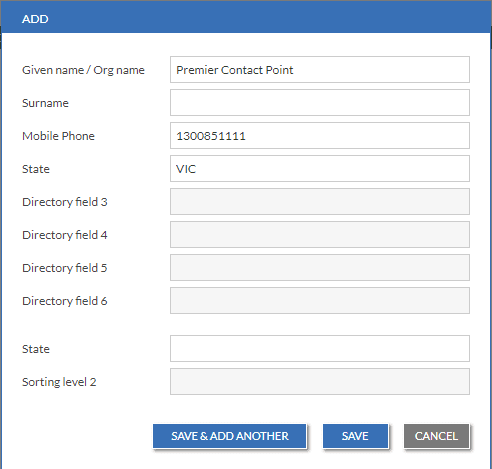
- Enter the new entry in the pop-up window, then click Save.
- Click Save.
Add more entries as required, if multiple entries are required use the Save & Add Another option on the pop-up window.
Data can also be importing using the Import feature. To use the import feature, click on the import button and follow the instructions provided to prepare an XLSX or CSV file.
Assigning Directory Collections to a queue
Once the directory collection has been prepared it needs to be assigned to queues to make it visible to agents on the agent desktop.
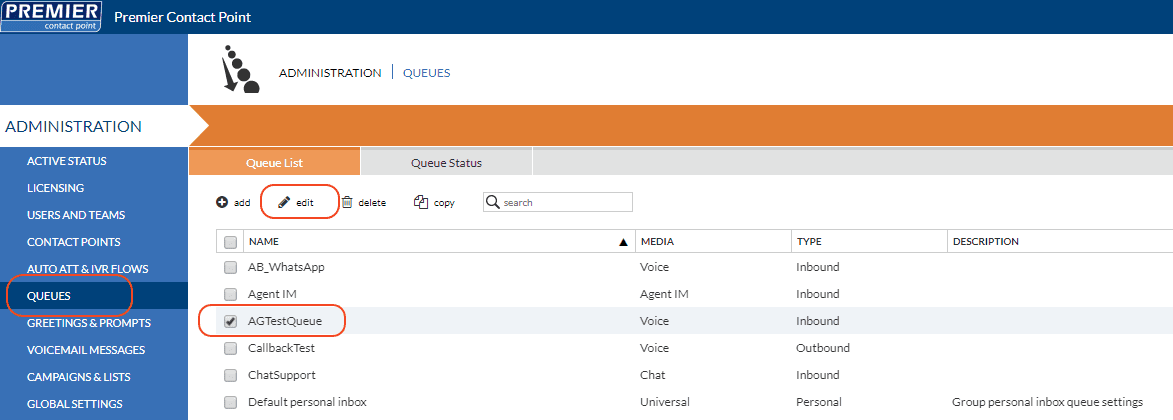
- Select Queues from the Administration menu panel.
- Select the queue which you want to apply the directory collection on, then click edit.
- Select Agent Parameters from the Queues menu panel.
- Navigate to the Directory Lists tab.
- From the drop-down Global External directory list select the Directory Collection name you created.
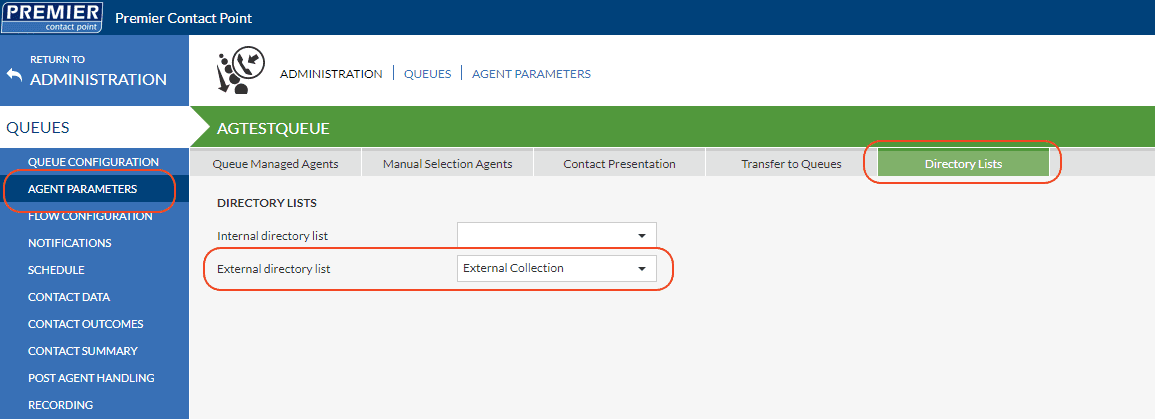
- Click SAVE
If you have created an Internal collection these can be assigned using the Global Internal drop-down options.